
Once you have a good grip on prompting in Quil, the next step is teaching the AI to mirror how you actually write. This includes your tone, formatting, and how polished your writing is.
That’s where example-based prompting comes in. Instead of just asking Quil to summarize a call, you show it exactly what a great output looks like. This example can be anything (a client summary, candidate submittal, etc.)
In this guide, we’ll break down how to use One-Shot and Few-Shot prompting to help Quil learn from your examples.
You’ll learn when to use each method, how to structure your examples, and a few copy-paste prompt templates to get you started.
Once your Notes are solid, the next step is generating longer-form documents. These documents can include candidate submissions, client summaries, or post-interview write-ups.
In Quil, you create these inside the Follow Up Material section. Here, you provide Quil with a single, well-structured example, and it automatically mirrors your tone, formatting, and style.
To train Quil for these kinds of outputs, you can use One-Shot or Few-Shot prompting.
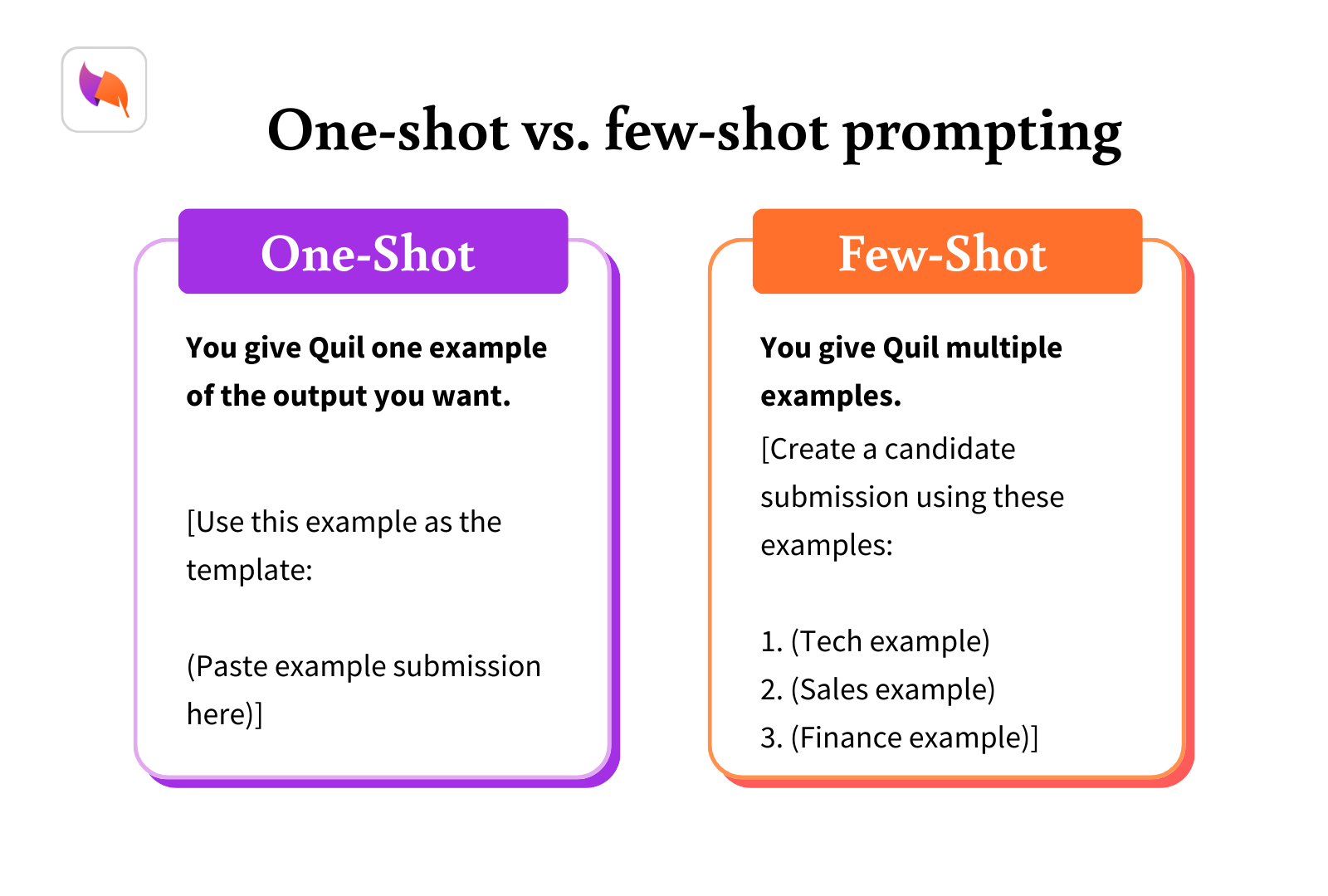
You provide one complete example of the desired output (like a candidate submission). Quil studies that example and reproduces the same tone and layout using the new participant’s data.
Example:
[Based on this conversation, create a similar note structure using the participant’s information. Use this example for your response:
(Paste example submission here)]
This bracketed structure tells Quil: “Use this format, tone, and level of detail as a template.”
You give multiple examples to teach Quil how your writing style might vary across different roles or clients. This works best for recruiters who write different types of submissions. For instance, technical roles vs. sales roles.
[Based on this conversation, create a candidate submission using the participant’s info. Refer to these examples to guide your response:
1. (Paste tech role submission example)
2. (Paste sales role submission example)
3. (Paste finance role submission example)]
Always enclose your instructions inside square brackets.
This signals to Quil that the text inside the brackets are system-level instructions, not part of the submission content itself.
Example:
[Use the following format to create a client-ready candidate submission summary based on the participant’s information:
(Insert sample text or template here)]
If you skip brackets, Quil may treat your instructions as part of the content, which can lead to formatting or structural errors.
Follow-up prompts work best when tailored to the type of role or industry.
A healthcare submission sounds very different from a sales or finance one. Quil learns those nuances quickly when you provide examples specific to each.
For instance:
[Use this as an example for healthcare roles:
(Paste healthcare-specific submission example here)]
[Use this as an example for tech roles:
(Paste tech submission example here)]
This helps ensure every output reads as if written by a recruiter who understands that particular field.
Include the job description directly in your prompt to help Quil align submissions with the role’s actual requirements.
Wrap it inside triple quotes (“””) so Quil recognizes it as a reference document.
Example:
[Based on this conversation, use this job description as a reference:
"""
(Paste JD here)
"""]
When you do this, Quil cross-references what the participant said with the job description.
Once your prompts are ready, you can set up your workflow in Quil. Start by defining how meetings are structured, how notes are captured, and how outputs flow into your ATS.
Workflows in Quil revolve around Meeting Types, which act as templates for every recruiting conversation you run. They ensure your notes and submissions stay consistent and organized across different roles and clients.
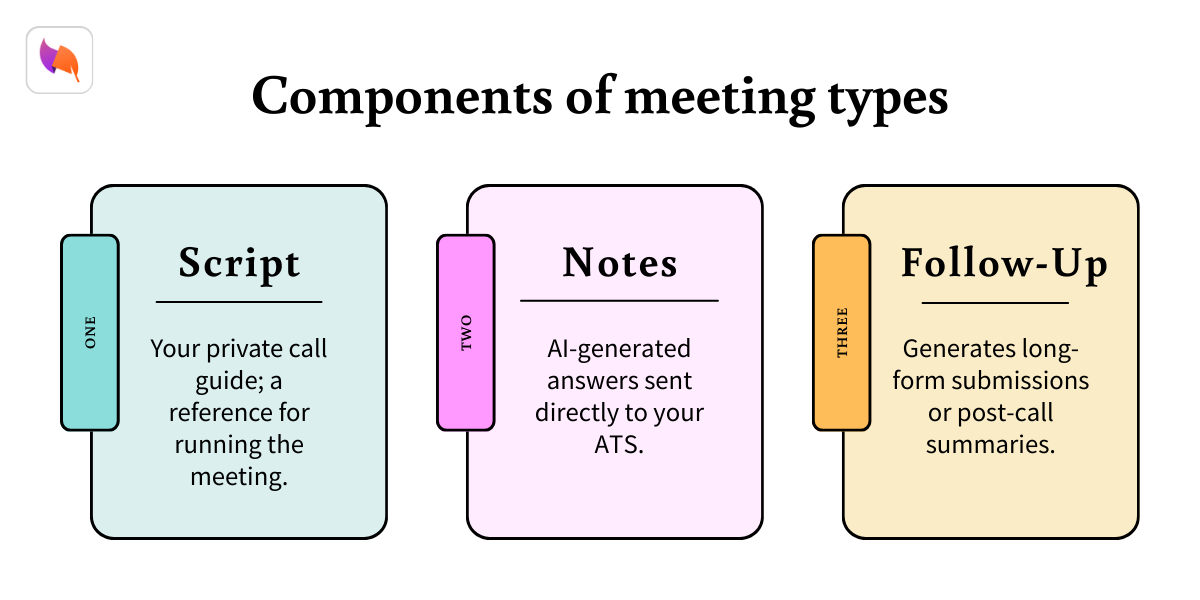
Each Meeting Type in Quil includes three core components:
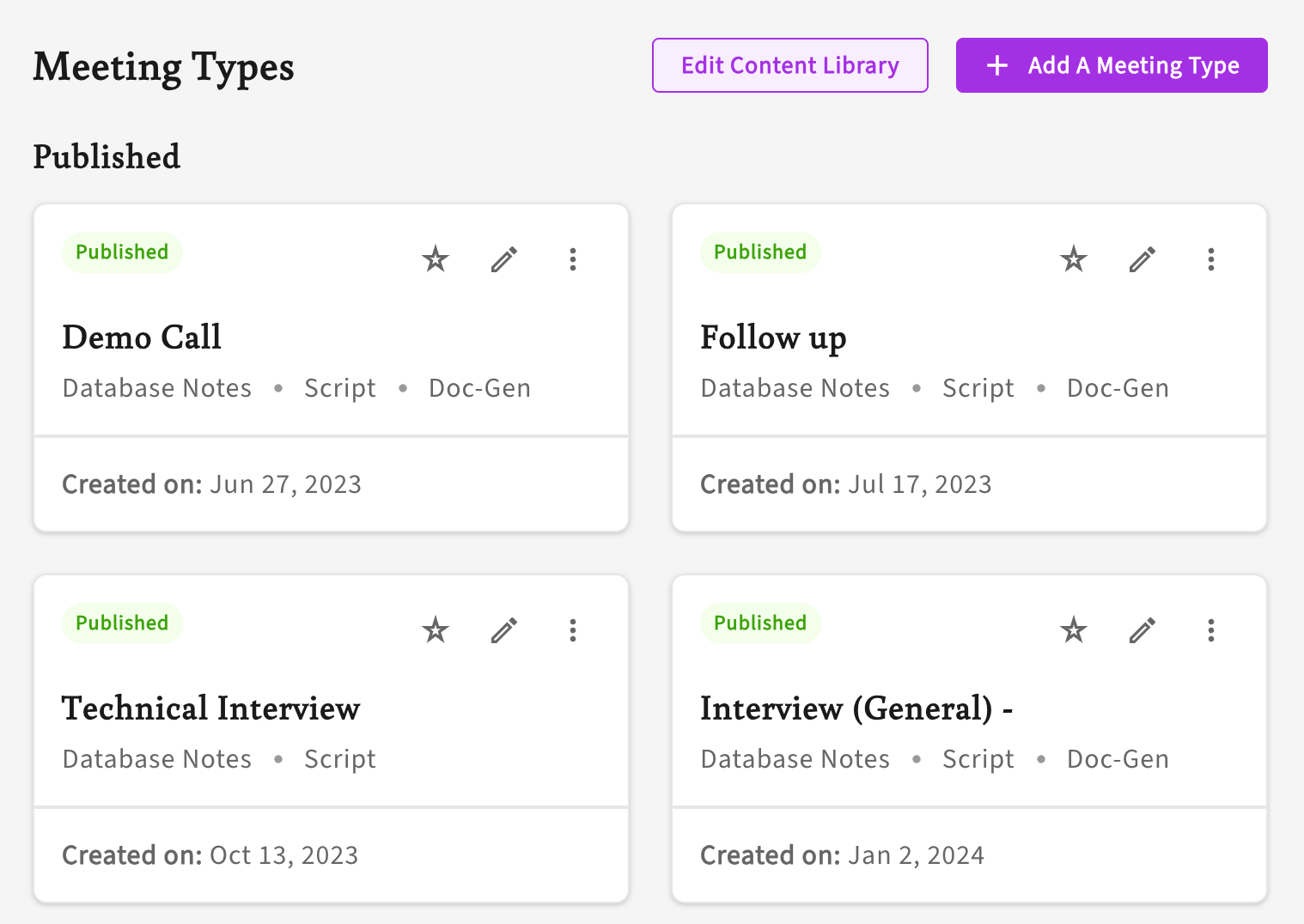
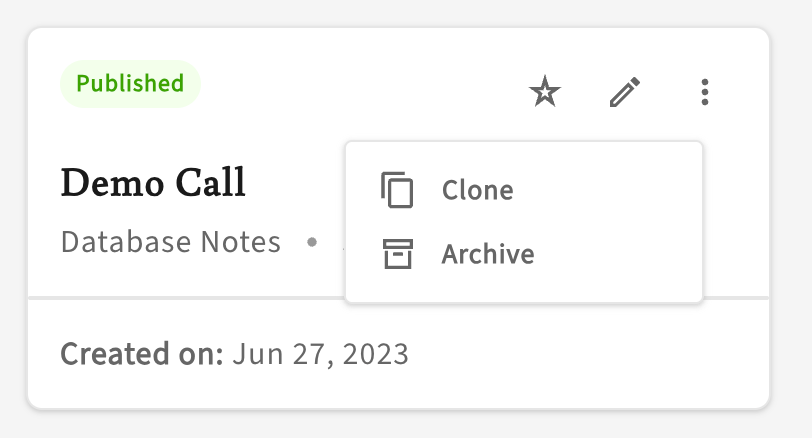
Instead of starting from scratch, it's usually easiest to duplicate an existing Meeting Type. Then adjust the Notes and Follow-Up Material to fit the new role. This preserves your formatting and prompt style while updating only role-specific details, like required skills or tone.
Though, quick note: if you want to start from a PDF job description, you'll have to create a new meeting type.
One easy way to customize a meeting type is to upload a PDF job description directly. Quil reads the document, extracts relevant questions, and automatically drafts a Script and Notes section for you. From there, you just add the Follow Up Materials you want.
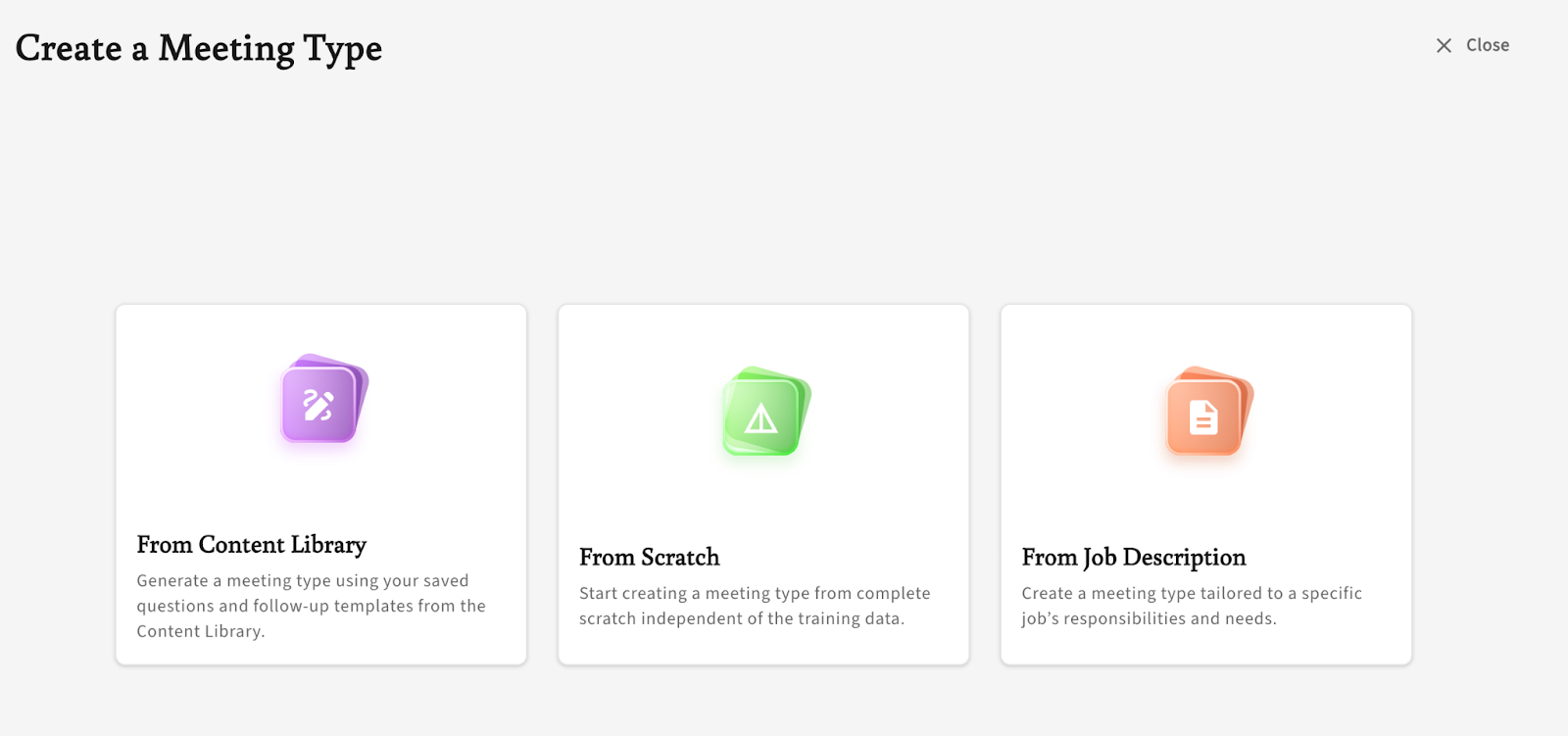
Under Meeting Type details, you’ll find a field labeled Activity Type. This tags your notes when they sync to your ATS, for example as “Candidate Notes,” “Interview Summary,” or “Client Intake.”
Customizing this ensures your team’s outputs stay organized and searchable within your ATS.
[HOW TO IMPROVE QUIL’S RESPONSES]
Even the best-written prompts can’t anticipate every nuance of a recruiting conversation, and that’s okay.
As with all AI tools, it's best not to take their responses verbatim. Every output Quil generates is based on your prompt instructions. If a note feels off — missing details, too soft, or full of filler — take it as an example to refine the prompt. You don't have to rewrite the entire note, but you should add your own unique insights or flavor to the note.
Small adjustments yield massive improvements in the next call.
If you notice missing context or structure, you can re-generate your meeting type with a new prompt. Usually, this would include adding additional context or making sure you clearly specify speaker roles, for example. Quil will regenerate the output using your original prompt, often correcting smaller issues like formatting or phrasing instantly.
Occasionally, the AI might attribute the host’s comments to the participant. When that happens, revisit your prompt and make sure it clearly defines:
One-shot and few-shot prompting help you fine-tune your recruiting process and make it more effective. By giving the AI real examples of your tone, structure, and polish, you show Quil how you write.
Over time, these examples compound. Submissions start sounding like they came straight from your desk. Think of setting up your meeting types as "teaching moments" -- each example you add helps Quil learn to speak your recruiting language fluently.
One-shot prompting gives Quil a single polished example, like a candidate submission or client summary. It mirrors the tone, structure, and formatting, then recreates the same style using the new participant’s information. This works best when your writing style is consistent across roles.
Few-shot prompting gives Quil several examples to show how your writing changes across roles, seniority levels, or clients. Instead of one template, you provide two or more examples, each demonstrating your tone and structure in different contexts.
The difference comes down to the number of examples and the level of consistency you need. One-shot prompting gives Quil a single reference, making it fast to set up and great for repeatable, uniform writing tasks. Few-shot prompting gives multiple examples, allowing Quil to understand a broader range of styles and nuances.
Few-shot prompting creates consistent, accurate, and context-aware outputs. It teaches Quil how your writing changes based on the role or situation.